On Web
Complete Desktop user guide for signing in, managing game accounts, upgrading characters, claiming rewards, and using every feature on 1stMU GameCenter.
Desktop Navigation & Discord Sign-In
Learn how the Desktop layout is organized and how to unlock your Player Dashboard in two clicks using Discord.


1. Top Header Bar
Click the 1stMU logo (top-left) to return Home. The center bar gives instant access to Gift Code, Quest In Game, In Game guide, On Web guide, and Character guide. Use the top-right icons to open Download or switch between 6 languages (EN, ES, PT, VI, ZH, FIL).
2. Bottom Dock & Right Edge Bar
On public pages, the bottom dock switches between Home, Server Info, News, Download, and Login / Dashboard. Inside member pages, it switches to member shortcuts (Top-up, Exchange, Accounts, Invite, Quest). The right floating bar links to official social channels.
3. One-Click Discord Sign In
Open Sign In and click Continue with Discord. GameCenter uses official Discord OAuth2 for both new and existing players—no separate web email or password registration form is needed.
4. Mandatory Discord Membership Gate
After signing in, if your Discord account has not joined the official server yet, Dashboard displays a verification gate. Click 1. JOIN OFFICIAL DISCORD SERVER, then click 2. CONFIRM MEMBERSHIP on the page to unlock all account, upgrade, and reward features.
5. Dashboard Overview & Quick Hub
Once verified, Dashboard displays your Player Account status, available Player Credit balance, Game Accounts (0–5), the Member Navigation grid, and all 5 Linked Account Slots with direct character upgrade shortcuts.
6. Session Security & Logout
Your web session is tied to your verified Discord identity while each in-game login uses its own separate 4–10 character Game Account password. Use the Logout card on Dashboard whenever you finish managing your accounts on a shared PC.
Game Account Management & VIP Super
Create up to 5 game accounts, monitor live balances and characters, update passwords, and upgrade to permanent VIP Super.


1. Create Up to 5 Game Accounts
Click + Add Account from Dashboard or Add Account. Enter an Account ID and Password using 4 to 10 letters or numbers (A–Z, a–z, 0–9). Use these credentials to log into the MU game client.
2. Switch Slots & Auto-Refresh
On Manage Accounts, click any of the 5 account slots at the top to inspect that account. Live data refreshes automatically every 15 seconds, or you can click the Refresh gear button manually.
3. Inspect Currencies & Copy ID
The selected account card shows your Online / Offline badge, VIP Tier (Free, VIP, VIP Plus, VIP Super), VIP Expiry, and live balances for WCoin C, WCoin P, and Goblin Point. Click the copy icon next to the username to copy it to your clipboard.
4. Change Game Account Password
Click Password on a Dashboard slot or Change Password inside Manage Accounts. Enter a new 4–10 alphanumeric password and click Change Password—the change applies immediately to your game login.
5. Permanent VIP Super Upgrade
When a game account is below VIP Super (VIP Level < 3), is Offline, and holds at least 100,000 WCoinP, the Upgrade VIP Super button appears on its Manage Accounts card. Confirming spends 100,000 WCoinP to unlock permanent VIP Super.
6. Character Cards & Upgrade Locks
Below the account card, up to 10 characters are listed with their Class, Level, Resets, Grand Resets, and three action buttons: + Reset, + Hunt, and ⇄ Class. Buttons unlock automatically as soon as the account status is Offline.
Why Upgrade to VIP Super on Website?
VIP Super permanently unlocks top-tier in-game progression rewards (4x 30-Day Daily Login rewards and 100 WCoinC + 20,000 GP + 4,000 Ruud per in-game Reset), while sharing the unified website exchange economy: 10 WCP per Reset, 50 HP per 1 WCP, and a base Daily WCoinP Exchange Quota of 1,000,000 WCP/day across all account tiers.
Reset Buff Exchange (+ Reset)
Exchange account WCoinP for character Resets on + Reset and unlock permanent combat milestones.


1. Select Character & Check Offline State
Use the character switcher at the top-left of the upgrade bar to pick any character on the selected account. The entire game account must remain Offline while performing the exchange.
2. WCoinP Cost & Reset Cap
Each Reset costs 10 WCP (Free / VIP / VIP Plus) or 10 WCP (VIP Super), up to the web cap of 100,000 Resets. Use the − / + stepper or type the exact number of Resets to preview Reset after exchange, Cost, and Remaining WCP.
3. Daily WCoinP Quota & Over-Quota Mode
Each character has a base daily quota of 1,000,000 WCP/day (1,000,000 WCP/day for VIP Super) shared between Reset and Hunt Point exchanges. When remaining daily quota runs out, Over-Quota Mode activates automatically so you can continue exchanging at a +50% WCP fee.
4. Buy Permanent Daily Quota
Daily quota purchases with Player Credit are currently paused; players enjoy the generous base limit of 1,000,000 WCP/day across all character upgrades.
5. Inspect 26 Reset Buffs (Buff Summary Tab)
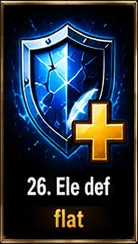
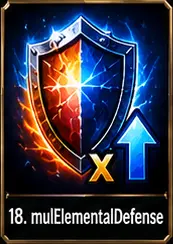
Click the Buff summary tab to browse Reset milestone tiers using the ‹ / › arrows. Hover or focus any of the 26 Reset Buff icons (Damage/Defense rates, Max HP/MP/BP/SD, Elemental, Critical/Excellent/Double/Triple/Ignore rates) or check the Reset Buff Index below.
6. Confirm & Instant Sync
Click Exchange and confirm the prompt. Your character's new Reset count, active milestone buffs, WCoinP balance, and remaining daily quota update immediately without consuming currency on failed checks.
Hunt Point Buff Exchange (+ Hunt)
Convert WCoinP into Hunt Points on + Hunt to level up 30 individual character combat buffs.


1. Choose From 30 Combat Buff Options
Use the horizontal slider (‹ / ›) in the + HUNT tab to pick from 30 buffs: flat bonuses (Elemental/Skill/Physic/Magic/Curse/Exc/Crit Damage, Defense, Damage Decrease/Reflect up to +250,000; Max HP/SD up to +50,000,000) and percentage multipliers/rates (up to +50% at Lv. 1,000).
2. WCoinP-to-Hunt Point Conversion Rate
Normal conversion grants 50 HP per 1 WCP (Free / VIP / VIP Plus) or 50 HP per 1 WCP (VIP Super). If your character's daily WCoinP quota is exhausted, Over-Quota Mode grants -50% HP per WCP (or you can buy +50 WCP/day permanent quota for 1 Credit).
3. Stepper & Quick Spend Buttons
Enter the WCoinP amount or click +10 WCP, +100 WCP, +1,000 WCP, or MAX. The summary panel calculates Hunt Point received, Hunt Point balance before and after, Remaining WCoinP, and Daily WCoinP quota in real time.
4. Level Curve & Web Exchange Cap
Each buff scales up to Level 1,000 (cumulative points: 4 × L² + 6 × L; next level cost: 10 + 8 × L HP). You can upgrade any option directly up to Level 1,000 without level-gate milestones within available WCoinP and daily quota.
5. Tier Gates Above Level 300
Progression milestone gates above Lv. 300 are currently disabled. All 30 buff options can be upgraded smoothly up to Level 1,000 without requirement gates.
6. 30-Axis Radar Chart (BUFF SUMMARY Tab)
Switch to the BUFF SUMMARY tab to view your character's 30-axis Hunt Buff Radar Chart (scaled across Lv. 40, 160, 360, 640, and 1,000 rings) alongside the complete list of all 30 buffs, their current levels, and exact active bonuses.
Character Class Change (⇄ Class)
Switch any character to another final class path directly on Change Class without losing your character progression.


1. Unequip All Gear In-Game First
Before logging out of the game, remove all equipped weapons, armor, wings, pentagrams, mounts, and costumes from your character and place them in your inventory or vault. Changing class clears active skills and removes items worn on the character body.
2. Log Out Completely (Account Offline)
Exit the character to the server screen or close the client so your account status shows Offline on GameCenter. Class change is locked while any character on the account is online.
3. Pick Your Target Final Class
Open Change Class, select your character in the top bar, and use the ‹ / › slider arrows to browse all 15 playable classes. Click the portrait card of the new class you want to switch to (your current class is marked and disabled).
4. Verify Cost & Confirm Switch
Review the fixed Change cost (100,000 WCoinP) and your projected Remaining WCoinP. Click Change Class and accept the confirmation dialog to complete the class conversion immediately.
Need Help Choosing a Class?
Open the Character Guide in the top header bar to compare all 15 classes, their PvM & PvP tier ratings, signature 5th skills, weapon Combat Power scaling, and class counter matchups before spending WCoinP.
Discord Verification, Referral & Commissions
Use Verify & Invite to claim your Welcome Gift, invite friends with your personal referral link, unlock 9 milestone tiers, and earn Credit commissions.


1. Top KPI Strip & 4 Workspace Tabs
The top strip tracks your live Discord Connection State, Valid Invites, Bonus Issued, and total Commission (Credit). Switch between INVITE, MILESTONES, REWARDS, and COMMISSION tabs below.
2. Connect Discord & Unlock Welcome Reward
In the INVITE tab, join the official Discord server and click Connect Discord. Linking your Discord unlocks the LINK Welcome Reward (1,000 WCoinC · 10 WCoinP · 50,000 GP · 5,000 Ruud).
3. Share Your Personal Referral Link
In the Referral panel, click Copy to copy your unique link (/?ref=YOUR_TOKEN), Copy post content to grab a ready-made promo post, or Share Facebook. An invite counts as Valid once the invited friend registers a game account via your referral link and verifies via Connect Discord.
4. Unlock 9 Invite Milestone Tiers
Open the MILESTONES tab to track your progress across 9 tiers: Discord Link, First Invite (1), Common (every 1 invite), Advanced (10), Rare (25), Epic (50), Ancient (100), Legendary (250), and Ultimate (500)—rewarding WCoinC, WCoinP, GP, Ruud, and Dragon Eggs.
5. Claim Milestone Gift Codes (REWARDS Tab)
Whenever a badge appears on the REWARDS tab, open it and click Claim on any unlocked row. The system generates a reward Gift Code right in the table—click Copy and redeem it in-game.
6. Earn +10% Referral Commission
Every time a player invited through your referral link has a top-up approved, you automatically receive 10% of their top-up value in Player Credit. Check the COMMISSION tab to review every commission payout.
Top-up, Milestone Rewards & Credit Exchange
Add funds on Top-up to receive Player Credit and cumulative Supporter Milestones, then convert Credit into game currencies on Credit Exchange.


1. Submit a Top-up Order (Min. $5 USD)
On Top-up (TOP-UP tab), enter an amount of at least $5.00 USD ($1 USD = 1 Credit). Select a payment method tab (USDT TRC20, Binance USDT, Remitly, VietQR, or PayPal) to view the exact receiving wallet/QR and rate (1 USD = 1 USDT = 25,000 VND).
2. Upload Payment Proof & Track History
After transferring, enter an optional transaction reference, attach your payment success screenshot (PNG or JPG, under 1 MB, alphanumeric filename), and click SUBMIT FOR REVIEW. Track your order code and review status (PENDING / APPROVED / REJECTED) in the HISTORY tab.
3. Claim Cumulative Top-up Milestones
Approved USD accumulates permanently toward Supporter Milestones in the MILESTONES tab (from $5 Supporter, $10 Bronze, $25 Silver up to $2,000+). Open the REWARDS tab and click CLAIM on unlocked tiers to receive your bonus Gift Code.
4. Convert Credit into Game Currencies
Open Credit Exchange to convert available Credit at fixed rates per 1 Credit: 10,000 WCoin, 500 WCoin Plus (WCP), 200,000 GP, or 100,000 Ruud.
5. Quick Credit Amounts & Live Preview
Click a coin button, enter the Credit amount to spend (down to 0.01 Credit) or click 1.00, 5.00, 10.00, 25.00, or MAX. Verify the You will receive preview and click EXCHANGE.
6. Copy Exchange Gift Codes
Each Credit Exchange immediately generates a Gift Code containing your converted currency. Switch to the HISTORY tab on Credit Exchange anytime to view past conversions and click COPY on any code.
Gift Codes, Quest Career & Game Center Tools
Use the public header and bottom navigation bars to claim personal Gift Codes, look up all 500 Career Quests, download the client, and follow server updates.


1. Claim Personal Gift Codes (24h Expiry)
Open Gift Code and filter by All, Available, or Claimed. Click Flip on any card to inspect its details. When signed in and Discord-verified, click Claim to generate your unique 12-character personal Gift Code (single-use, valid for 24 hours UTC+7), then click Copy Code and redeem it in-game.
2. Explore 500 Quests (Quest Career)
Open Quest In Game to browse all 500 Career Quests across 5 stages (#1–#500). Switch stage tabs at the bottom to view total stage rewards (WCoinC, WCoinP, GP, Ruud, GM Gift), or click Flip on any quest card to check required Level/Reset, hunting maps, target monsters, and kill counts.
3. Download & Update the Game Client
Visit Download and choose New Install Package (Mini Install) or Complete Client Archive (Full Client). Add the client folder to Windows Defender/antivirus exclusions, run MU Private Launcher, click Update until it reaches 100%, then start Game.exe.
4. Server Info, Roadmap & News
Check Server Info for live server status, launch date, rates (EXP x99,999 · Drop 80% · Jewel Luck 80%), and the interactive Event & Equipment Roadmap. Visit News for patch notes, maintenance schedules, and event announcements.
5. Character & In-Game Guides
Use Character in the top bar for deep-dive guides on all 15 classes (combat charts, skill multipliers, PvM/PvP roles, and counter diagrams) and In Game for in-game commands (/addstr, /reset, /offattack), Daily Rewards, and PvP Tickets.
6. Discord Daily Check-In Bot
Once your Discord is linked and you have created at least one game account on the website, you can also use /checkin (or the Daily Check-in button) in the official Discord server once per day (resets at 00:00 UTC+7) to receive a cumulative progressive WCoinP Gift Code valid for 24 hours.
Support, Community & Troubleshooting
Reach the 1stMU team through official support channels, join the player community, or resolve common website messages quickly.
"Upgrade locked while account is online"
Log out of the game client completely (including /offattack offline hunting), wait a few seconds, or click the Refresh button on Manage Accounts until the status badge turns Offline.
"Top-up requires a PNG/JPG image under 1 MB"
Save your payment receipt as a standard .png or .jpg file under 1 MB using a simple letters-and-numbers filename (e.g., receipt01.jpg without special symbols) before submitting.
What to Include When Contacting Support
Provide your Player email, game account ID, character name, a clear description of the issue, the approximate time it happened, and screenshots or transaction references when relevant. Never share your game password or verification codes with anyone.